What to look for when buying a PC that fits your work, budget, and upgrade plans
Start with the job the PC must do
Deciding what to look for when buying a PC starts with a practical question: what will the computer do most days? A fast gaming desktop can be poor value for someone who mainly writes documents, while a thin laptop with limited cooling may disappoint a designer, gamer, or video editor. Before comparing processor names or sale prices, define your main workload, where the PC will be used, and how long you expect to keep it.
For most buyers, the right PC is not the most powerful model on the shelf. It is the model with enough processor performance, memory, storage, display quality, ports, repair options, and warranty coverage to stay useful without overspending on parts that will not improve daily work.
If you are comparing multiple categories, our buying guides section can help you apply the same decision process to other product choices: start with use, compare measurable features, then weigh total ownership cost.
Divide your needs into three groups. Everyday use includes web browsing, email, schoolwork, streaming, video calls, and office apps. Creative and professional use includes photo editing, programming, data analysis, design, music production, and video work. Gaming and 3D use includes demanding games, rendering, simulation, and virtual reality. Each group puts pressure on different parts of the PC, so a balanced system matters more than one impressive number on the spec sheet.
Choose the right form factor before comparing specs
The first practical choice is the type of PC. A desktop tower, mini PC, laptop, and all-in-one can run similar software, but they differ in comfort, mobility, serviceability, noise, and upgrade options. Choosing the wrong form factor often causes more frustration than choosing a slightly slower processor.
| PC type | Best for | Main trade-off |
|---|---|---|
| Desktop tower | Gaming, upgrades, heavy work, long desk sessions | Requires monitor, keyboard, mouse, and dedicated space |
| Laptop | Students, travelers, hybrid workers, small spaces | Less upgradeable and more dependent on battery, screen, and keyboard quality |
| Mini PC | Home offices, media centers, compact desks | Limited graphics power and fewer internal expansion options |
| All-in-one | Clean desks and family computers | Display and computer are tied together, making repairs and upgrades harder |
A desktop tower usually gives the best performance per dollar and the easiest upgrade path. It also lets you choose a monitor and keyboard separately. A laptop is the right answer when mobility matters, but buyers should pay close attention to battery life, screen brightness, keyboard feel, fan noise, and whether memory or storage can be replaced later. A mini PC can be excellent for office work and streaming, but it is not ideal if you expect high-end graphics. An all-in-one keeps the desk tidy, yet it can be less flexible if the screen fails or the internal hardware becomes outdated.
Read the core specs in the right order
PC spec sheets can be difficult to compare. Processor generations, memory types, storage formats, graphics names, and marketing labels all compete for attention. A simpler approach is to read the specs in order of real-world impact: processor, memory, storage, graphics, then cooling and power design.
Processor
The processor, or CPU, affects how quickly the system responds, multitasks, opens apps, and handles demanding jobs. For everyday users, a recent midrange processor is usually a better value than an older high-end chip. For video editing, software development, engineering tools, or heavy spreadsheets, look for more cores and stronger sustained performance, not only a high boost speed. In laptops, cooling is especially important because thin designs may reduce performance during long workloads even when the chip name looks powerful.
Memory
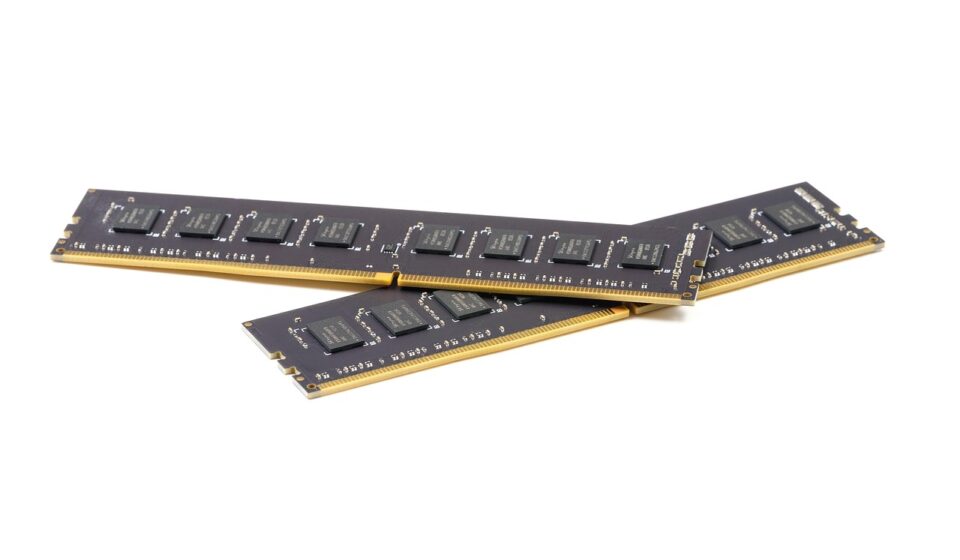
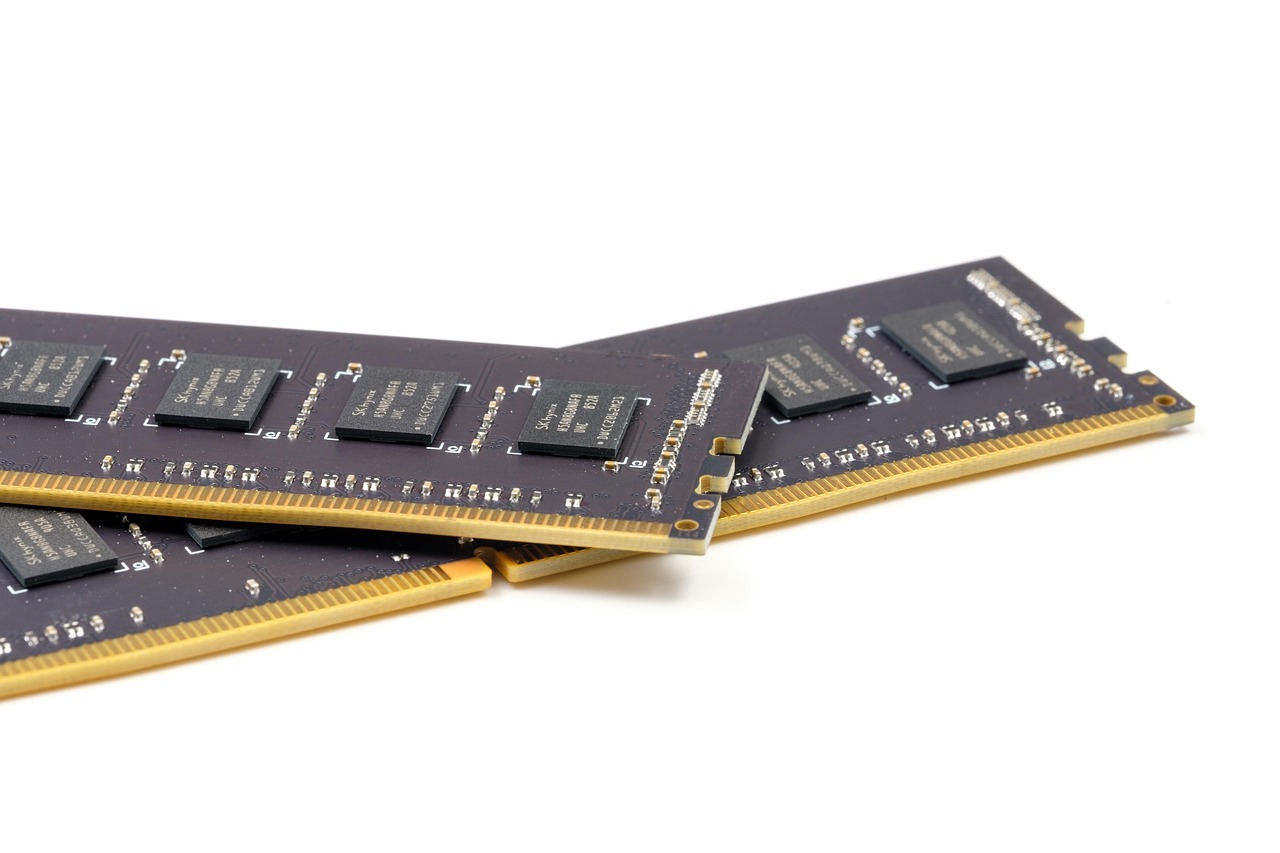
Memory, or RAM, determines how comfortably the PC can keep apps, browser tabs, and background tasks open. Microsoft lists 4 GB as part of the minimum Windows 11 requirement, but that should be treated as a floor for basic operation, not a comfort target. For a new Windows PC, 16 GB is a sensible baseline for general use, school, office work, and light creative tasks. Buyers who edit large photos, work with virtual machines, run development tools, or keep many apps open should consider 32 GB or more. If a laptop has soldered memory, buy the amount you expect to need for the life of the machine.
Storage
Storage affects both capacity and responsiveness. A solid-state drive should be considered essential for a modern PC because it makes startup, app launching, and file access feel much faster than a traditional hard drive. Microsoft lists 64 GB of storage as a Windows 11 minimum, but practical buyers should look well beyond that. A 256 GB drive can work for light cloud-based use, 512 GB is a safer everyday starting point, and 1 TB or more is useful for games, large media libraries, creative projects, and offline files. If the PC has only one small drive and no easy upgrade path, the low purchase price may become expensive later.
Graphics
Graphics needs depend on workload. Integrated graphics are fine for streaming, office work, web apps, and light photo editing. A dedicated graphics card becomes important for modern games, 3D rendering, GPU-accelerated creative work, and some AI or engineering tasks. Do not buy a costly graphics card just because it looks powerful on paper. Check whether your actual software benefits from it, whether the power supply can support it, and whether the case has enough airflow.
Check the parts you touch and connect every day
Performance is important, but daily satisfaction often comes from the display, keyboard, touchpad, ports, wireless connection, webcam, speakers, and noise level. These details rarely stand out in ads, yet they shape every hour of use.
For laptops and all-in-ones, display quality deserves careful attention. Resolution, brightness, color coverage, refresh rate, and surface finish all matter. A higher resolution can make text sharper, but it may also affect battery life. A bright matte screen can be more comfortable in offices and rooms with windows. Creative users should check color accuracy claims carefully, while gamers should look at refresh rate and response behavior instead of relying on size alone.
Ports are another common source of disappointment. Count what you use now: external monitor, mouse receiver, storage drive, camera card reader, headset, Ethernet adapter, printer, drawing tablet, or docking station. USB-C is useful, but not every USB-C port supports the same speed, charging, or display output. The USB Implementers Forum has used consumer-facing speed labels such as USB 20Gbps, USB 40Gbps, and USB 80Gbps to reduce confusion, but retail listings can still be inconsistent. When a port matters, verify its stated speed and display support rather than assuming every connector with the same shape behaves the same way.
Wireless specs also need context. Wi-Fi 7 certification was introduced by the Wi-Fi Alliance in 2024, and it can improve speed and latency in supported networks. However, a Wi-Fi 7 laptop will not deliver full benefits if your router, internet plan, and local wireless environment cannot support them. For many homes, strong Wi-Fi 6 or Wi-Fi 6E support remains perfectly adequate. Bluetooth version, webcam resolution, microphone quality, and fingerprint or face sign-in can also be worth comparing if the PC will be used for calls and travel.
Plan for operating system requirements, security, and energy use
Operating system support is not just a software detail. It affects security updates, compatibility, and how long the PC remains practical. Microsoft’s published Windows 11 specifications include requirements such as a compatible 64-bit processor, TPM 2.0, Secure Boot capability, 4 GB of RAM, and 64 GB of storage. A new PC should meet official requirements comfortably, not barely. If you are buying used or refurbished, confirm Windows 11 compatibility before paying, especially for older systems.
Some buyers will also see AI PC or Copilot+ PC labels. Microsoft describes Copilot+ PCs as systems with a neural processing unit capable of at least 40 TOPS, along with 16 GB of RAM and 256 GB of storage. That hardware can matter if you want specific local AI features, but it should not distract from fundamentals. A PC with a comfortable keyboard, enough memory, a good display, and the right ports may be a better everyday buy than a machine chosen mainly for an AI label.
Energy use is another long-term factor, especially for desktops left on all day. ENERGY STAR computer criteria focus on efficiency in operating modes such as off, sleep, and idle, along with power management and efficient power supplies. For buyers, that means a certified system or an efficient power supply can reduce wasted electricity and heat. It is also wise to keep sleep settings enabled rather than disabling them for convenience.
Look beyond the purchase price
A cheap PC can be a good deal, but only if it avoids hidden costs. Compare the total package: included warranty, return period, repair access, upgrade path, bundled accessories, software trials, power adapter quality, and whether you need to buy a monitor, dock, keyboard, mouse, webcam, or extra storage immediately.
-
For desktops, check the power supply rating, available drive bays, memory slots, graphics card space, and whether the motherboard uses standard parts.
-
For laptops, check whether the battery can be serviced, whether the charger is standard USB-C or proprietary, and whether memory or storage is replaceable.
-
For refurbished PCs, check the battery health if it is a laptop, the warranty length, the return policy, and whether the seller clearly lists the processor generation and storage type. See also: care tips.
-
For gaming PCs, check cooling, power supply quality, case airflow, and monitor resolution before spending heavily on the graphics card.
-
For family PCs, prioritize reliability, enough storage, simple setup, and a comfortable display over extreme performance.
Warranty terms matter more when the PC is thin, sealed, expensive, or used for work. A desktop with standard parts can often be repaired locally, while a slim laptop may require brand-specific parts and service. If downtime would affect your job or school, paying for a better support plan may be more rational than buying a small processor upgrade.
A simple checklist before you buy
Use this final checklist to keep the decision grounded. If a PC fails several of these points, a discount may not be enough to make it a smart purchase.
-
The form factor matches where and how you will use the computer.
-
The processor is recent enough for your workload and operating system support.
-
The PC has at least 16 GB of memory for mainstream use, or more for heavy creative and technical work.
-
The main drive is an SSD, with enough capacity for your files and apps.
-
The graphics hardware matches your games or professional software instead of marketing hype.
-
The display is bright, sharp, and comfortable for long sessions.
-
The ports support your monitor, dock, storage, and accessories without a pile of adapters.
-
The PC meets official Windows 11 requirements if you plan to use Windows.
-
The warranty, return policy, and repair options are clear.
-
The total cost includes accessories, upgrades, software, and possible support coverage.
Frequently asked questions
How much RAM should I look for when buying a PC?
For a new general-purpose PC, 16 GB is a sensible target. It gives enough room for browser tabs, office apps, video calls, and light creative work. Choose 32 GB or more if you edit large media files, run virtual machines, develop software, or keep demanding apps open together.
Is a desktop or laptop better value?
A desktop usually offers better performance, easier repairs, and more upgrade options for the money. A laptop is better when mobility, battery power, and space-saving design matter. The better value depends on whether you need portability or long-term flexibility more.
How much storage is enough for a new PC?
For light web and cloud use, 256 GB can work, but 512 GB is a safer baseline for most buyers. Choose 1 TB or more if you install large games, store photos and videos locally, or work with creative files. Prioritize an SSD over a traditional hard drive for the main system drive.
Should I buy an AI PC or Copilot+ PC?
Consider one if you specifically want supported local AI features and the rest of the computer also fits your needs. Do not choose an AI label over basics such as memory, storage, display quality, keyboard comfort, ports, and warranty. For many buyers, those fundamentals will matter more every day.
What is the biggest mistake people make when buying a PC?
The biggest mistake is buying around one headline spec instead of the full system. A fast processor cannot fix too little memory, a cramped drive, a poor screen, weak cooling, missing ports, or a short warranty. The best PC is balanced for the work you actually do.